Create files in the shared area for a panel or group

Modified on Wed, 24 Sep at 1:58 PM

Members of the Secretariat will need to create documents and other files in the shared area for a panel or group so that everyone in that panel/group can access them. 


There are two ways to do this: 

  1. Create a file in the shared area
  2. Upload a file from your My files area


Create a file in the shared area

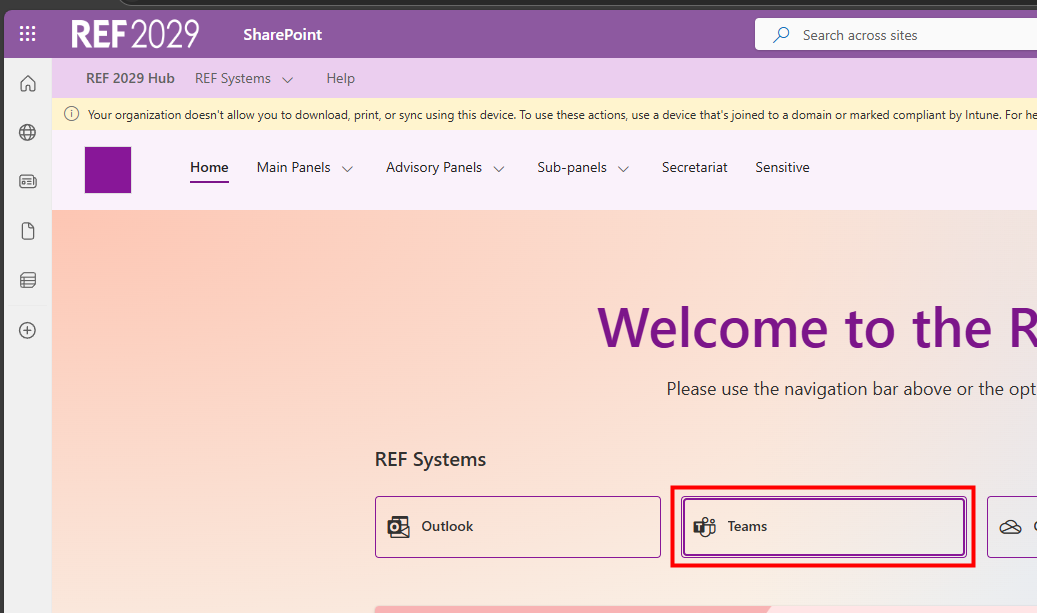
  • On the Hub home page, click on Teams
  • Click on Teams
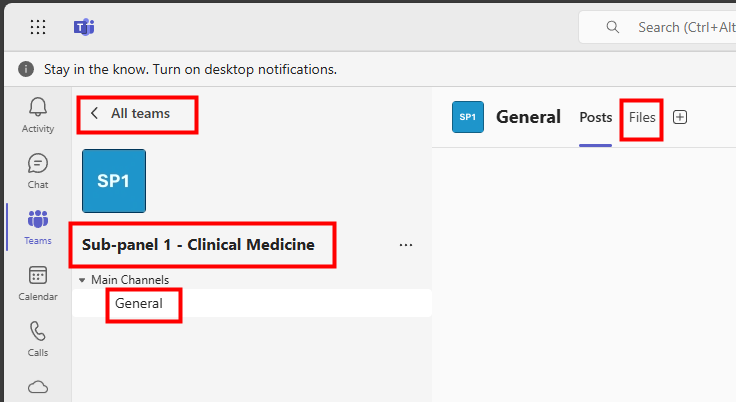
  • Check you are in the correct team, (if you aren't then click on All teams and find the right one)
  • Click on the General channel, (or whichever channel you want if there are more than one)
  • Click on Files, at the top of the window
  • If you want to create the file in a particular folder then click to open that folder now
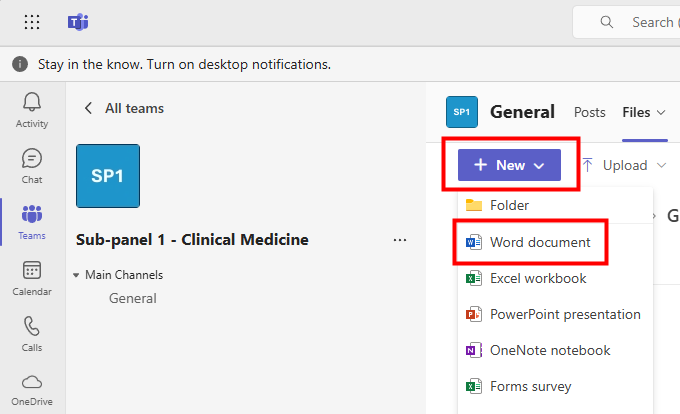
  • Click on + New
  • Click on the type of file you want, for example Word document
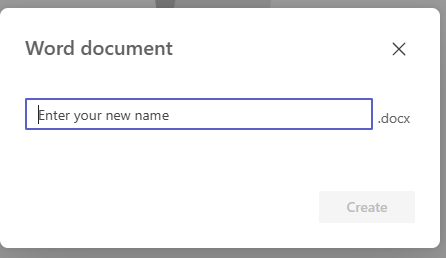
  • Type in a name for your file
  • Click on Create
  • The file will open in a new tab and you can start working on it
  • It will automatically save in the folder where you created it


Upload a file from your My Files area

Please note, this will move the file from your My files area to the shared area. 

  • From the My files area, (in OneDrive), open the file
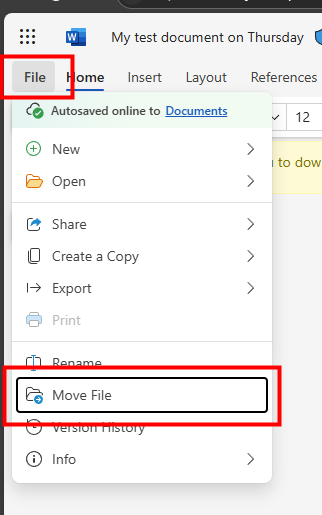
  • In the file, click on File
  • Click on Move File
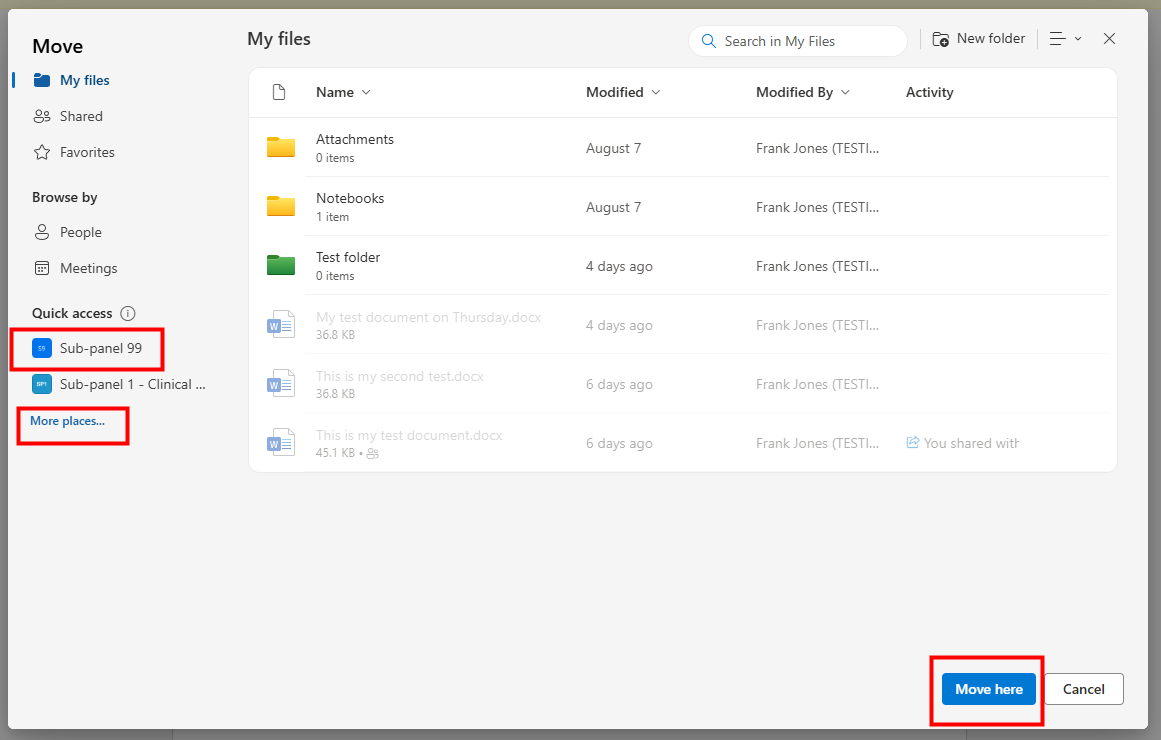
  • Under the Quick access area, click on the relevant group/team
  • If you can't see the one you want, click on More places... and select the relevant group/team and folder 
  • Click on Move here - the file will be moved to that area 


We want to make these articles as helpful as possible so please use the Yes/No buttons below to send us feedback.

Was this article helpful?

That’s Great!

Thank you for your feedback

Sorry! We couldn't be helpful

Thank you for your feedback

Let us know how can we improve this article!

Select at least one of the reasons
CAPTCHA verification is required.

Feedback sent

We appreciate your effort and will try to fix the article