How to edit a PDF (annotate, highlight, draw, etc.)

Modified on Wed, 8 Oct at 9:31 AM

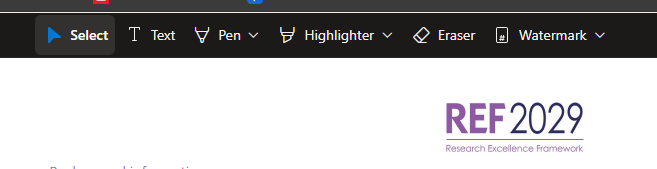
To make edits to a PDF on the REF Hub, please follow the instructions below. The features available are:

  • Annotate with text boxes
  • Draw with a free form pen
  • Highlight
  • Watermark
  • Erase previous edits


NOTE: Any changes made to a PDF will be visible to everyone who has access to the file. If you want to edit meeting papers or other central resources, please make sure you make a copy first


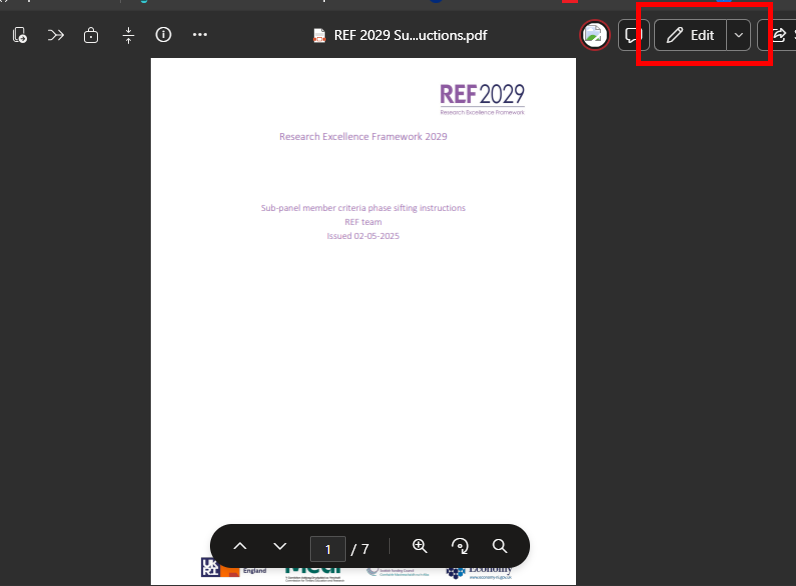
  • Open the PDF you would like to edit
  • In the top right-hand menu bar, click on Edit
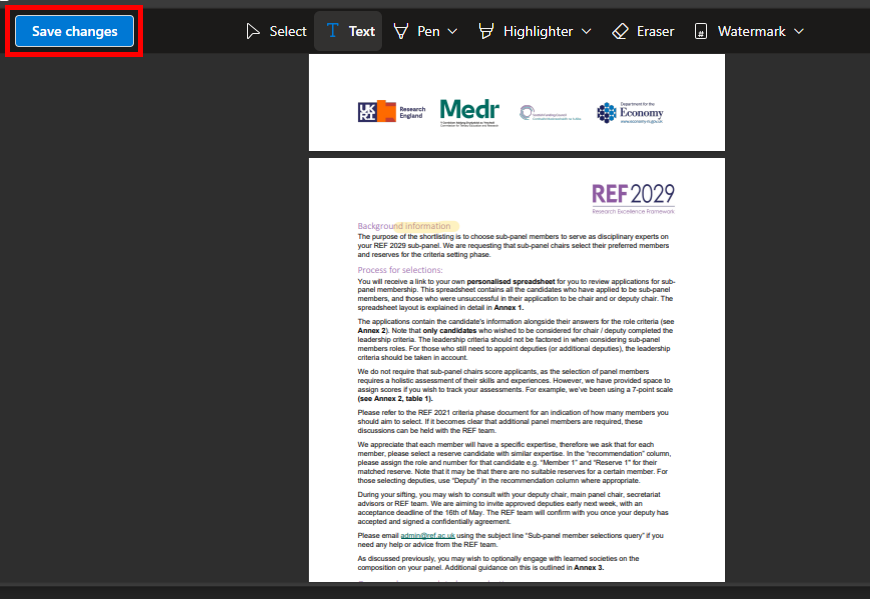
  • This will bring up a new menu bar at the top of the PDF


  • To use each feature, click on the desired option in this menu bar


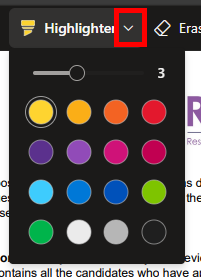
  • When using Pen and Highlighter, click on the down arrow next to the icon to bring up customisation options


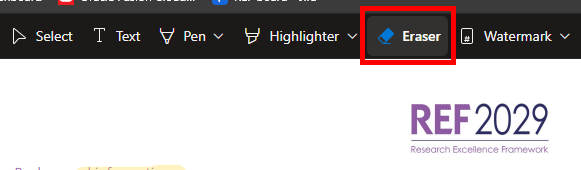
  • To undo any pen or highlighter edit you have made, select the Eraser option in the menu and click and drag over the edit you want to remove


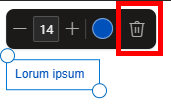
  • To remove any Text edit, select the text box you want to remove and click the rubbish bin icon in the menu pop-up


  • To save your edits, click Save changes in the top left-hand corner


We want to make these articles as helpful as possible so please use the Yes/No buttons below to send us feedback.

Was this article helpful?

That’s Great!

Thank you for your feedback

Sorry! We couldn't be helpful

Thank you for your feedback

Let us know how can we improve this article!

Select at least one of the reasons
CAPTCHA verification is required.

Feedback sent

We appreciate your effort and will try to fix the article