It is easy for OneDrive to become a big pile of documents, making it difficult to find what you want. Below are some tips for organising your OneDrive to make it easy to use and find the files you want.
Folder structure
It is best to make a few top-level folders in your OneDrive for the common categories of files that you will need to save and access. Here is an example:
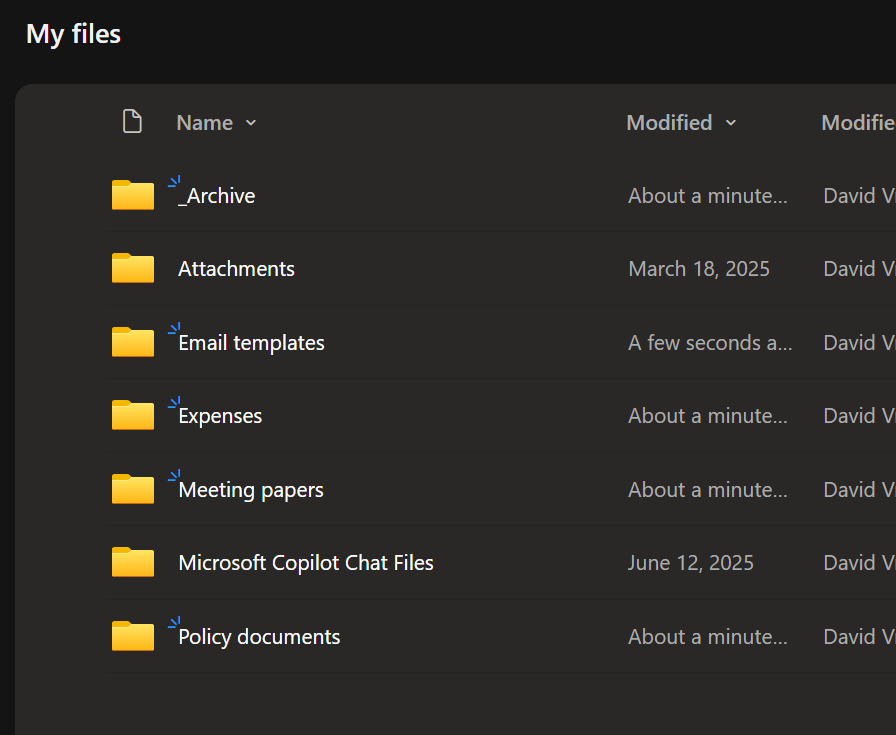
It can be useful to do this within your top-level folders, like creating sub-folders for each month within the "Meeting papers" top-level folder.
To create a new folder in OneDrive, follow this guide.
Folder colours
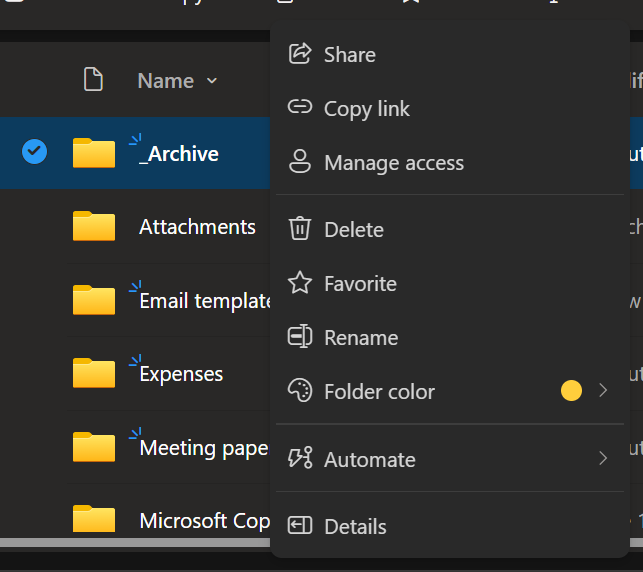
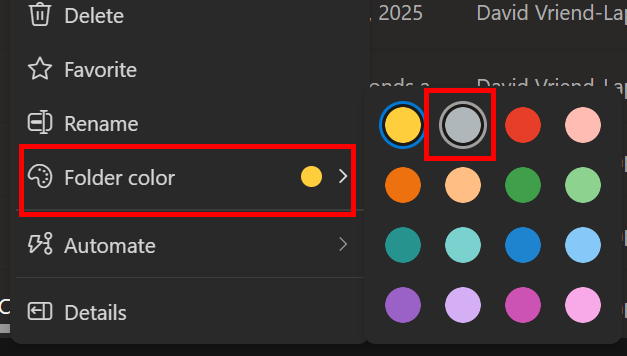
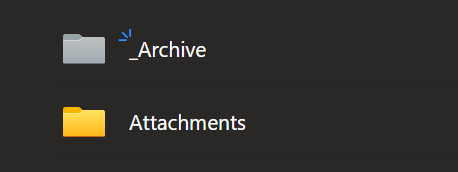
To further help with folder organisation, you can set the colours of your folders. To do this:
|  |
|  |
|  |
Archive folder
Using an archive folder for files you no longer need access to now, but may do sometime in the future, can make a massive difference to how cluttered your OneDrive feels.
If a meeting has passed or policy comments have been submitted, move these files to your archive folder so you don't need to wade through them to find your current work.
Nothing in your OneDrive is deleted automatically, so those files will be there if you need them but won't get in your way in an archive folder.
Tip: if you put an underscore before your Archive folder name, i.e. "_Archive" it will always appear at the top of your folders when organised alphabetically
Consistent naming
To make sure you can find the files you want, it helps to name all your files consistently.
For meeting papers, it can help to put the date first, then the panel name/number, then any other information, so your files look like this:
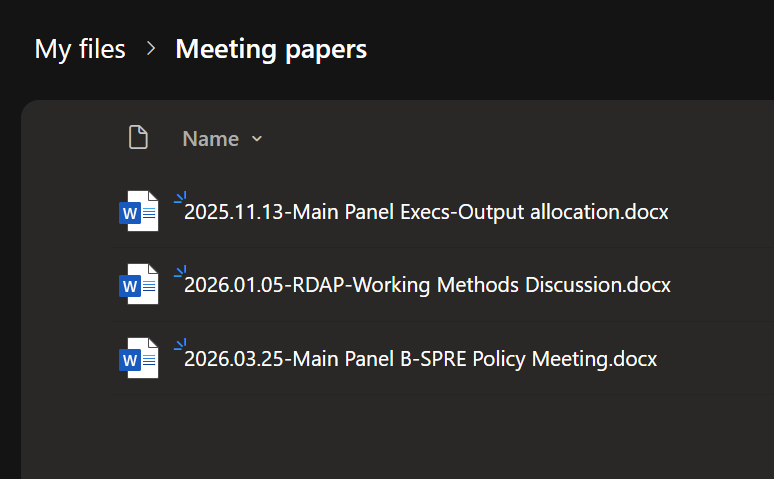
You cannot put "/" in the file names, so you will need to use a full stop or dash to write the date.
Tip: if you use the YYYY.MM.DD date format, your files will fall into chronological order when sorted alphabetically
We want to make these articles as helpful as possible so please use the Yes/No buttons below to send us feedback.
Was this article helpful?
That’s Great!
Thank you for your feedback
Sorry! We couldn't be helpful
Thank you for your feedback
Feedback sent
We appreciate your effort and will try to fix the article