Upload a file to SharePoint/OneDrive

Modified on Thu, 30 Oct at 12:39 PM

You can upload files that are saved on your device into the REF Hub. You can upload them to either SharePoint or OneDrive. Please find guidance on accessing SharePoint and OneDrive here.


Upload to OneDrive

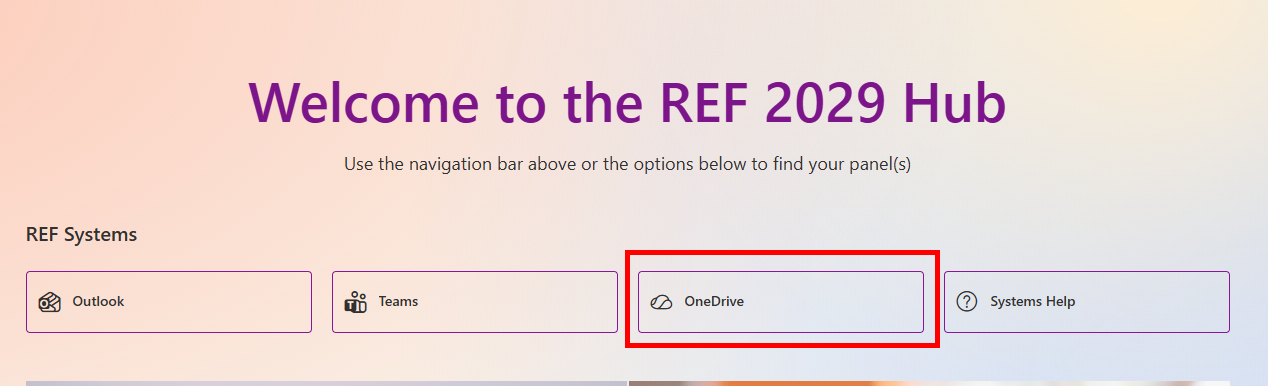
  • From the REF Hub homepage, open OneDrive
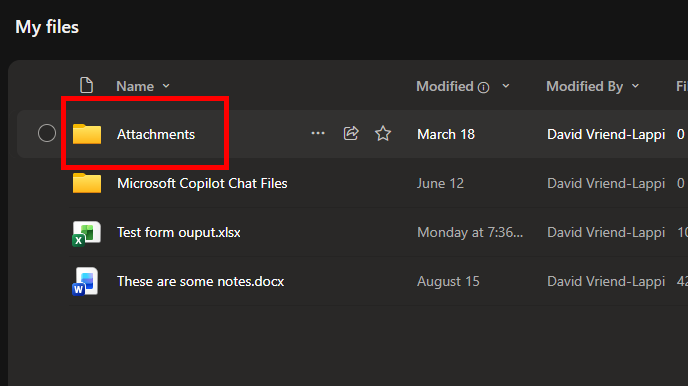
  • In the main file/folder view, navigate to the desired folder or sub-folder
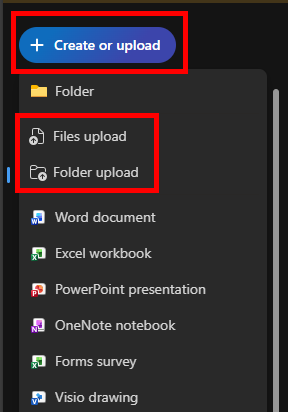
  • Select  Create or upload in the top left-hand corner
  • From the drop-down menu, select either File upload or Folder upload
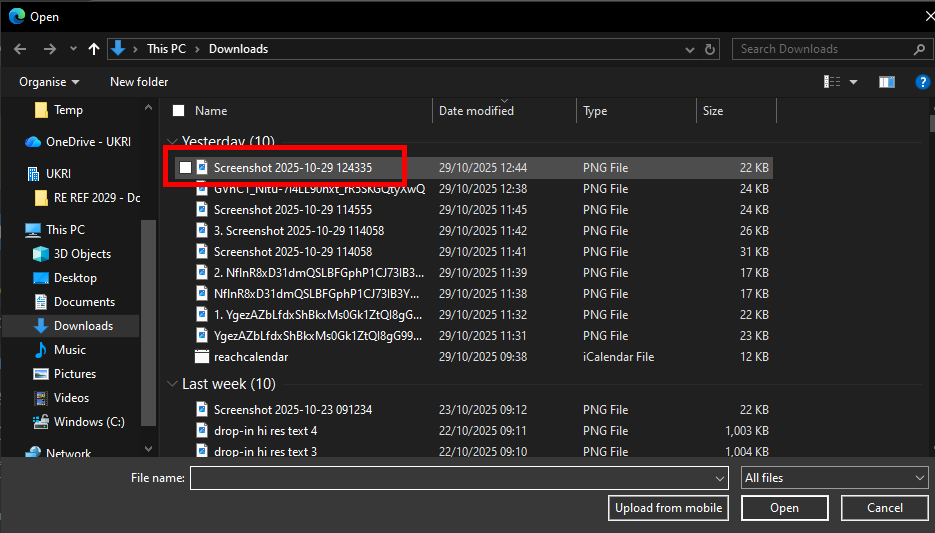
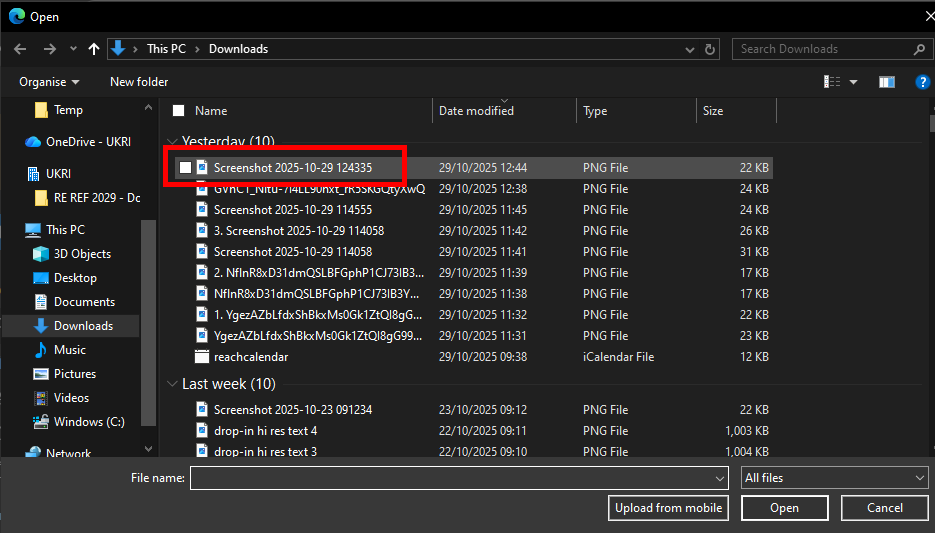
  • This will open a Documents window. Please find the desired file/folder and double-click it (A Windows machine is pictured, it will look slightly different on a Mac)
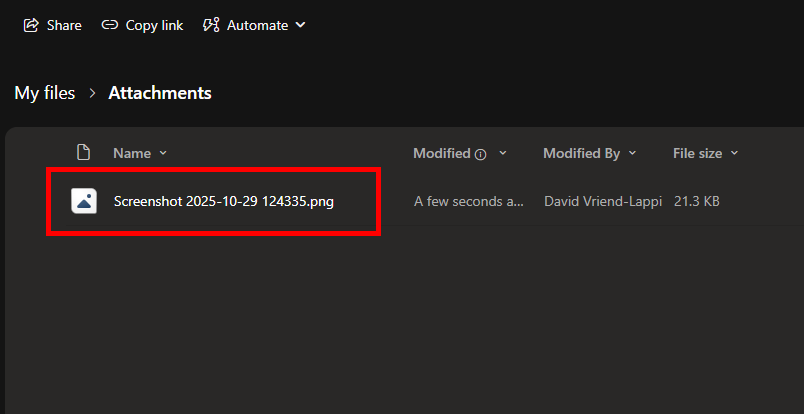
  • After a moment, the file/folder will now appear in the main file/folder viewer on OneDrive


Upload to SharePoint

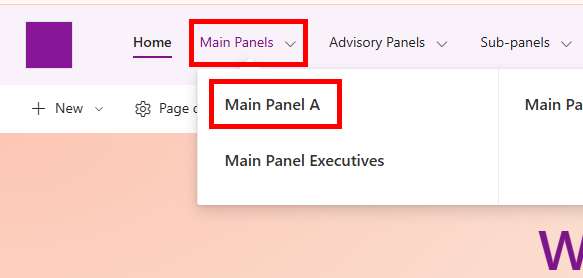
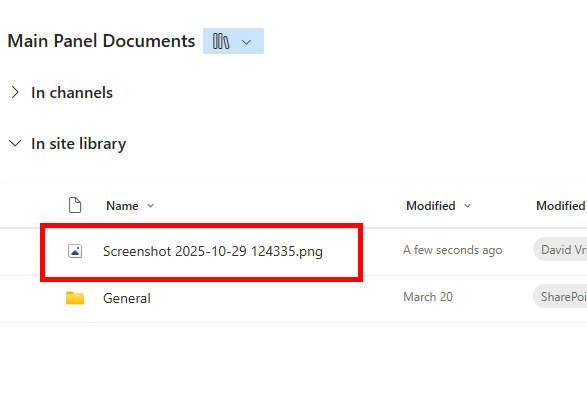
  • From the REF Hub homepage, navigate to the desired SharePoint group and open the Documents area

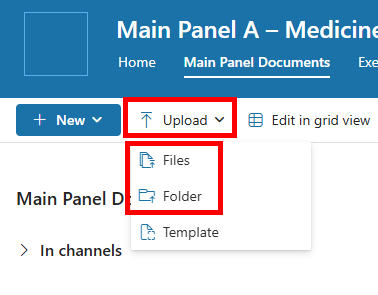
  • In the top bar menu, select Upload
  • In the drop-down menu, select either Files or Folder
  • This will open a Documents window. Please find the desired file/folder and double-click it (A Windows machine is pictured, it will look slightly different on a Mac)
  • After a moment, the file/folder will now appear in the main file/folder viewer on SharePoint


We want to make these articles as helpful as possible so please use the Yes/No buttons below to send us feedback.

Was this article helpful?

That’s Great!

Thank you for your feedback

Sorry! We couldn't be helpful

Thank you for your feedback

Let us know how can we improve this article!

Select at least one of the reasons
CAPTCHA verification is required.

Feedback sent

We appreciate your effort and will try to fix the article