Move a file

Modified on Tue, 7 Oct at 2:36 PM

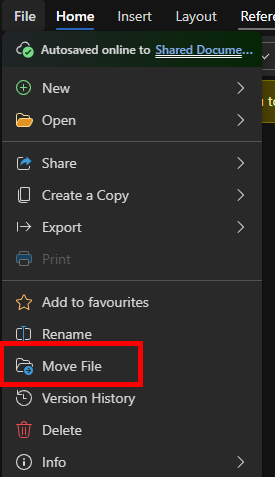
If you need to move a file from one folder to another, follow the corresponding instructions below


NOTE: Following the steps below will move the file to its new location, meaning anyone who had access to its old location and not its new one will lose access to it. To create a copy of a file, please follow these instructions.


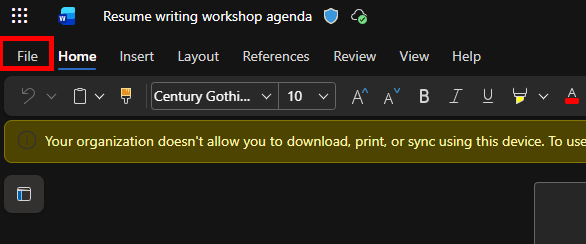
  • Open the file you want to move
  • Locate the title card for the document in the top left-hand corner and click on the small chevron to the right of the title
  • In the drop-down menu, click the small chevron to the right of the Location


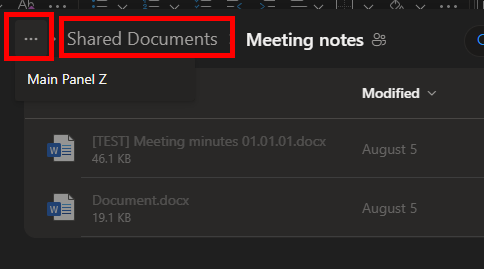
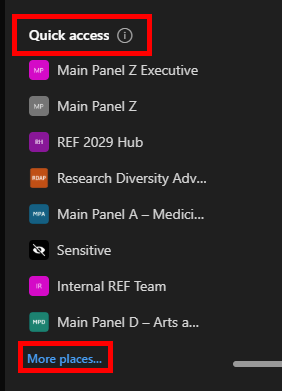
  • In the pop-up window, select the location you would like to move the file to:
    • To move the file to another sub-folder in the same group, click on the desired folder in the file path at the top (the three dots will show the full list of the file path)
  • To move the file to another group, find the group under Quick access or More places... and navigate to the correct folder
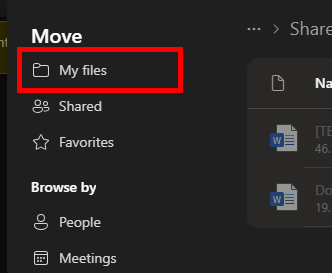
  • To move the file to your own files, select the My files option in the top left and select the desired folder in your OneDrive
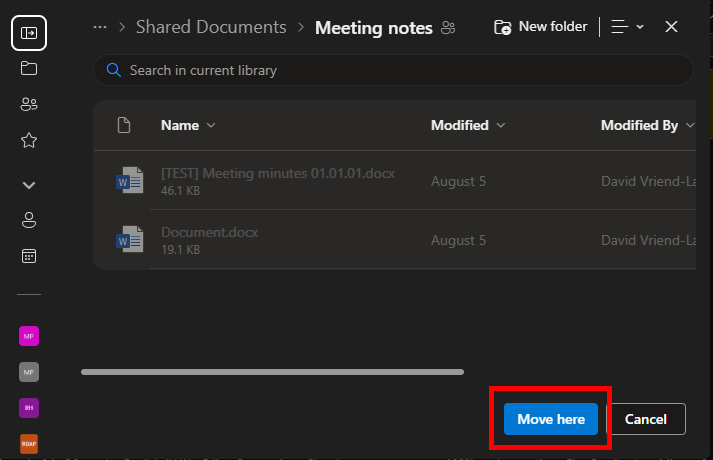
  • Once you have selected the desired folder, click the Move here button in the bottom right


We want to make these articles as helpful as possible so please use the Yes/No buttons below to send us feedback.

Was this article helpful?

That’s Great!

Thank you for your feedback

Sorry! We couldn't be helpful

Thank you for your feedback

Let us know how can we improve this article!

Select at least one of the reasons
CAPTCHA verification is required.

Feedback sent

We appreciate your effort and will try to fix the article